





The Top 10 CCTV Problems You Need to Fix
2024-02-02
Closed-circuit television (CCTV) systems have become an integral part of modern security infrastructure, providing a vigilant eye on homes, businesses, and public spaces. However, like any technology, CCTV systems can encounter issues that compromise their effectiveness. In this article, we will explore the top 10 CCTV problems that you need to address to ensure the optimal functioning of your surveillance system.
1.Verify Camera Power and Connection
A fundamental step in troubleshooting CCTV problems is to ensure that each camera in your surveillance system is receiving adequate power and is properly connected to the network. Addressing issues related to power supply and connectivity is crucial for maintaining the continuous operation of your cameras. Here's a detailed guide on how to verify and rectify potential problems:
Check Power Supply
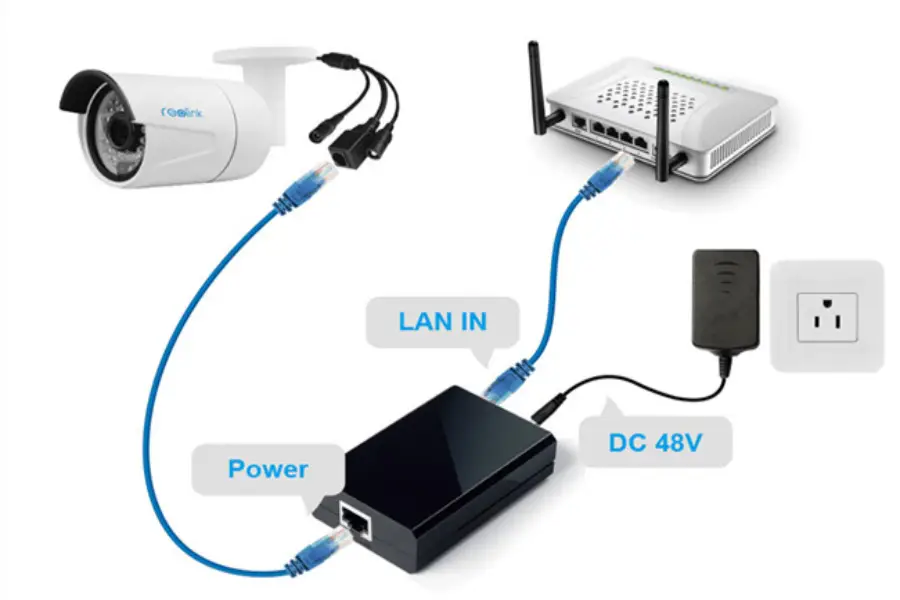
Confirm that the camera's power source is operational. If the camera is powered by a direct electrical connection, ensure that the power outlet is functioning correctly. If it's a PoE (Power over Ethernet) camera, check the network cable and the PoE switch or injector.
Inspect power cables for any visible damage, wear, or fraying. Replace damaged cables immediately to prevent electrical issues.
Utilize a Multimeter
For wired cameras, use a multimeter to measure the voltage at the camera's power source. Ensure that the voltage matches the camera's specifications. If there's a significant deviation, it may indicate a power supply issue.
Reboot the Camera
Sometimes, cameras may encounter temporary glitches. Reboot the camera by disconnecting and reconnecting the power source. This simple step can resolve minor connectivity issues.
Check Network Connection
If the camera is connected via Ethernet, inspect the network cable for any damage. Ensure it is securely connected to both the camera and the network switch or recorder.
For wireless cameras, verify the strength of the Wi-Fi signal. Weak signals can result in intermittent connectivity and poor video quality.
For wireless cameras, verify the strength of the Wi-Fi signal. Weak signals can result in intermittent connectivity and poor video quality.
Inspect Camera LEDs
Most CCTV cameras have indicator LEDs that provide information about the camera's status. Check the LED lights to see if the camera is receiving power and if it's attempting to connect to the network.
Review Camera Settings
Access the camera's settings through its associated software or web interface. Ensure that the network configuration is accurate, and IP addresses are assigned correctly.
Consider Power Surge Protectors
Install power surge protectors to safeguard cameras from voltage spikes, which can occur during power outages or electrical storms.
2.Discover and Ping Camera
Discovering and pinging your CCTV cameras is a crucial step in diagnosing connectivity issues and ensuring that each camera is accessible on the network. The process involves identifying the IP addresses assigned to the cameras and using the ping command to test their responsiveness. Here's a step-by-step guide on how to perform this task:
1.Use IP Scanner Tools
Utilize IP scanning tools such as Advanced IP Scanner, Angry IP Scanner, or nmap to discover devices on your network. These tools provide a comprehensive list of connected devices along with their respective IP addresses.
2.Check DHCP Server
If your cameras are configured to obtain IP addresses dynamically (via DHCP), check the DHCP server's lease table for assigned IP addresses. This information will help you identify the IP addresses assigned to each camera.
3.Access Router Interface
Log in to your router's web interface and navigate to the device list or connected devices section. Many routers display a list of connected devices along with their assigned IP addresses.
4.Ping Cameras
Open a command prompt on your computer (Windows) or terminal (Linux/macOS).
Use the ping command followed by the IP address of each camera. For example: ping 192.168.1.101. Repeat this process for each camera's IP address.
Use the ping command followed by the IP address of each camera. For example: ping 192.168.1.101. Repeat this process for each camera's IP address.
5.Check Ping Responses
A successful ping will display a series of responses, indicating that the camera is reachable on the network. If you receive timeouts or unreachable messages, it may suggest a connectivity problem.
6.Verify Subnet
Ensure that the cameras and the device running the ping command are on the same subnet. IP addresses within the same subnet should be able to communicate with each other.
7.Adjust IP Settings
If cameras are set to static IP addresses, confirm that each camera has a unique and correctly configured IP address, subnet mask, and gateway.
8.Firewall Considerations
Check firewalls on both the camera and the computer running the ping. Temporarily disable firewalls to see if they are blocking communication.
9.Review Network Configuration
Double-check the network configuration settings on the cameras. Ensure that they are set up to connect to the correct network, and their IP addresses are consistent with your network settings.
3.Know Username / Password
Maintaining the security of your CCTV system is paramount, and ensuring that you have the correct usernames and passwords is crucial for preventing unauthorized access. If you encounter issues related to forgotten or compromised login credentials, here's a guide on how to address this problem:
1.Default Credentials
Check the documentation provided by the camera manufacturer for default usernames and passwords. Many cameras come with pre-set credentials, and it's essential to change them during the initial setup to enhance security.
2.Use Credential Recovery Features
Camera systems often have password recovery or reset features. Access the camera's management interface or software, and look for options to recover or reset the username and password. This might involve answering security questions or receiving a reset link via email.
3.Contact Manufacturer Support
If you are unable to recover the credentials through the system interface, reach out to the camera manufacturer's customer support. Provide proof of ownership and request assistance in resetting or recovering the login details.
4.Check Documentation or Labels
Inspect the physical camera or its packaging for any labels or documentation that might contain login information. Some manufacturers provide this information for quick reference.
5.Search for Default Credentials Online
In cases where default credentials have not been changed, it's important to note that this information might be available online. Manufacturers often publish default credentials in their product manuals, so checking the official documentation can be helpful.
6.Username and Password Combinations
If you have multiple cameras from the same manufacturer or if you've used a similar setup elsewhere, try common username and password combinations. Users often use familiar login details across devices for convenience.
7.Perform a Factory Reset
As a last resort, you can perform a factory reset on the camera. Keep in mind that this will reset all settings to their default values. Refer to the camera's manual for instructions on how to initiate a factory reset.
8.Implement Strong Passwords
After regaining access to the camera, ensure that you set strong, unique passwords for both the camera and any associated software or network components. Use a combination of letters, numbers, and symbols to enhance security.
9.Regularly Update Passwords
Establish a practice of regularly updating passwords for all components of your CCTV system. This helps mitigate the risk of unauthorized access and enhances the overall security posture of your surveillance infrastructure.
1.Default Credentials
Check the documentation provided by the camera manufacturer for default usernames and passwords. Many cameras come with pre-set credentials, and it's essential to change them during the initial setup to enhance security.
2.Use Credential Recovery Features
Camera systems often have password recovery or reset features. Access the camera's management interface or software, and look for options to recover or reset the username and password. This might involve answering security questions or receiving a reset link via email.
3.Contact Manufacturer Support
If you are unable to recover the credentials through the system interface, reach out to the camera manufacturer's customer support. Provide proof of ownership and request assistance in resetting or recovering the login details.
4.Check Documentation or Labels
Inspect the physical camera or its packaging for any labels or documentation that might contain login information. Some manufacturers provide this information for quick reference.
5.Search for Default Credentials Online
In cases where default credentials have not been changed, it's important to note that this information might be available online. Manufacturers often publish default credentials in their product manuals, so checking the official documentation can be helpful.
6.Username and Password Combinations
If you have multiple cameras from the same manufacturer or if you've used a similar setup elsewhere, try common username and password combinations. Users often use familiar login details across devices for convenience.
7.Perform a Factory Reset
As a last resort, you can perform a factory reset on the camera. Keep in mind that this will reset all settings to their default values. Refer to the camera's manual for instructions on how to initiate a factory reset.
8.Implement Strong Passwords
After regaining access to the camera, ensure that you set strong, unique passwords for both the camera and any associated software or network components. Use a combination of letters, numbers, and symbols to enhance security.
9.Regularly Update Passwords
Establish a practice of regularly updating passwords for all components of your CCTV system. This helps mitigate the risk of unauthorized access and enhances the overall security posture of your surveillance infrastructure.
4.Check ARP Tables
The Address Resolution Protocol (ARP) plays a critical role in mapping IP addresses to MAC addresses within a local network. Checking ARP tables can help identify connectivity issues and ensure that devices, including your CCTV cameras, are communicating effectively. Here's a guide on how to check ARP tables and address potential problems:
1.Understanding ARP
ARP resolves IP addresses to MAC addresses, enabling devices to communicate within the same network. Each device maintains an ARP table that lists IP-MAC address pairs.
2.Access ARP Table
Open a command prompt on your computer (Windows) or terminal (Linux/macOS).
Type the command arp -a and press Enter. This command displays the ARP table on your computer.
Type the command arp -a and press Enter. This command displays the ARP table on your computer.
3.Identify Camera Entries
Look for entries in the ARP table corresponding to the IP addresses of your CCTV cameras. Ensure that each camera has a corresponding MAC address.
4.Check for Inconsistencies
If an IP address is associated with the wrong MAC address or if there are missing entries for your cameras, it indicates a potential issue in the network configuration.
5.Ping Cameras Again
After checking the ARP table, ping the IP addresses of your cameras once more. Confirm that the MAC addresses listed in the ARP table match the ones associated with your cameras.
6.Address Duplicate IP Addresses
If multiple devices share the same IP address in the ARP table, it may lead to communication problems. Resolve this issue by ensuring that each device on the network has a unique IP address.
7.Flush ARP Cache
In some cases, outdated ARP cache entries can cause connectivity issues. To refresh the ARP table, use the command arp -d to clear the cache, and then ping the cameras again to rebuild the table.
8.Verify Subnet Consistency
Ensure that all devices, including cameras and the device running the ARP check, are on the same subnet. Devices on different subnets may not be able to communicate directly.
9.Inspect Network Configuration
Review the network settings on your cameras and other devices. Confirm that the IP addresses and subnet masks are configured correctly.
10.Monitor ARP Activity
Use network monitoring tools to observe ARP activity in real-time. Sudden spikes or irregularities may indicate network issues or potential security threats.
11.Consider Network Segmentation:
If your network is large, consider implementing network segmentation to improve performance and security. Ensure that cameras and monitoring devices are on the same segment for efficient communication.
5.Confirm No IP Conflict
IP conflicts can cause disruptions in communication within a network, leading to connectivity issues for CCTV cameras and other devices. Resolving IP conflicts is essential for maintaining the stability and functionality of your surveillance system. Here's a guide on how to confirm and address IP conflicts:
1.Check Device IP Assignments
1.Check Device IP Assignments
Review the IP addresses assigned to all devices on your network, including CCTV cameras, computers, and networked peripherals. Confirm that each device has a unique IP address.
2.Use Network Scanning Tools
Employ network scanning tools like Advanced IP Scanner, Angry IP Scanner, or nmap to identify all active devices on your network. Look for duplicate IP addresses associated with different devices.
3.Inspect DHCP Lease Table
If your devices use DHCP to obtain IP addresses dynamically, check the DHCP server's lease table for conflicting IP assignments. Ensure that each device has a distinct lease.
4.Manually Check IP Configurations
For devices with static IP assignments, manually check the IP configurations on each device. Confirm that no two devices share the same IP address.
5.Resolve Duplicate IP Assignments
If you identify devices with conflicting IP addresses, change the IP address of one of the devices to ensure uniqueness. Access the device's settings or configuration interface to make the necessary adjustments.
6.Static IP Address Conflicts
Devices configured with static IP addresses may result in conflicts if multiple devices share the same address. Review the static IP assignments and modify them as needed to prevent overlap.
7.Consider DHCP Reservation
For devices requiring static IP addresses, consider configuring DHCP reservations on your DHCP server. This ensures that specific devices always receive the same IP address without the risk of conflicts.
8.Verify Subnet Configuration
Confirm that all devices are configured with the correct subnet mask. Devices with different subnet masks may not communicate effectively, leading to connectivity problems.
9.Use IP Conflict Detection Tools
Some network monitoring tools offer IP conflict detection features. Implement these tools to automatically identify and alert you to any IP conflicts within your network.
10.Perform Regular IP Audits
Conduct periodic IP audits to ensure ongoing network health. Regularly review and update IP assignments to accommodate changes in your network infrastructure.
6.Upgrade Firmware
Keeping your CCTV camera firmware up-to-date is crucial for ensuring optimal performance, addressing security vulnerabilities, and benefiting from the latest features and improvements. Here's a guide on how to upgrade firmware for your CCTV cameras:
1.Identify Camera Model
Determine the make and model of each CCTV camera. This information is essential for obtaining the correct firmware updates from the manufacturer's website.
2.Check Current Firmware Version
Access the camera's management interface or software to identify the current firmware version. This information helps you verify whether an update is necessary.
3.Visit Manufacturer's Website
Go to the official website of the camera manufacturer. Navigate to the support or downloads section to find firmware updates for your specific camera model.
4.Read Release Notes
Before downloading any firmware updates, carefully read the release notes provided by the manufacturer. This documentation highlights the changes, bug fixes, and improvements introduced in the new firmware version.
5.Download Firmware File
Download the firmware file corresponding to your camera model. Ensure that you are selecting the correct firmware version for your camera.
6.Backup Camera Settings
Before initiating the firmware upgrade, back up the camera settings. This precautionary step ensures that you can restore your configuration in case any settings are reset during the update.
7.Follow Manufacturer's Instructions
Manufacturers provide specific instructions for updating firmware. Follow the step-by-step guidelines outlined in the user manual or documentation provided by the manufacturer.
8.Use the Correct Update Method
Firmware updates can be applied through various methods, such as direct camera connection, network updates, or via a central management system. Choose the update method that aligns with your camera's specifications.
9.Ensure Stable Power Supply
A loss of power during a firmware update can lead to irreversible damage. Ensure a stable power supply throughout the upgrade process. Use uninterruptible power supplies (UPS) if available.
10.Wait for Completion
Allow the firmware update process to complete without interruption. This may take a few minutes, during which the camera may reboot multiple times.
11.Verify Update Success
After the update, log in to the camera's interface and confirm that the firmware version has been successfully upgraded. Verify that your camera settings are intact.
12.Monitor Camera Performance
Following the firmware update, monitor the performance of your CCTV cameras. Check for improvements in functionality, resolution, and any new features introduced in the updated firmware.
13.Set Up Automatic Updates
Some camera systems allow you to configure automatic firmware updates. Consider enabling this feature to ensure that your cameras stay current with the latest software releases.
14.Regularly Check for Updates
Set a schedule to regularly check for firmware updates. Manufacturers release updates to address security vulnerabilities and enhance performance, so keeping your cameras up-to-date is an ongoing process.
1.Identify Camera Model
Determine the make and model of each CCTV camera. This information is essential for obtaining the correct firmware updates from the manufacturer's website.
2.Check Current Firmware Version
Access the camera's management interface or software to identify the current firmware version. This information helps you verify whether an update is necessary.
3.Visit Manufacturer's Website
Go to the official website of the camera manufacturer. Navigate to the support or downloads section to find firmware updates for your specific camera model.
4.Read Release Notes
Before downloading any firmware updates, carefully read the release notes provided by the manufacturer. This documentation highlights the changes, bug fixes, and improvements introduced in the new firmware version.
5.Download Firmware File
Download the firmware file corresponding to your camera model. Ensure that you are selecting the correct firmware version for your camera.
6.Backup Camera Settings
Before initiating the firmware upgrade, back up the camera settings. This precautionary step ensures that you can restore your configuration in case any settings are reset during the update.
7.Follow Manufacturer's Instructions
Manufacturers provide specific instructions for updating firmware. Follow the step-by-step guidelines outlined in the user manual or documentation provided by the manufacturer.
8.Use the Correct Update Method
Firmware updates can be applied through various methods, such as direct camera connection, network updates, or via a central management system. Choose the update method that aligns with your camera's specifications.
9.Ensure Stable Power Supply
A loss of power during a firmware update can lead to irreversible damage. Ensure a stable power supply throughout the upgrade process. Use uninterruptible power supplies (UPS) if available.
10.Wait for Completion
Allow the firmware update process to complete without interruption. This may take a few minutes, during which the camera may reboot multiple times.
11.Verify Update Success
After the update, log in to the camera's interface and confirm that the firmware version has been successfully upgraded. Verify that your camera settings are intact.
12.Monitor Camera Performance
Following the firmware update, monitor the performance of your CCTV cameras. Check for improvements in functionality, resolution, and any new features introduced in the updated firmware.
13.Set Up Automatic Updates
Some camera systems allow you to configure automatic firmware updates. Consider enabling this feature to ensure that your cameras stay current with the latest software releases.
14.Regularly Check for Updates
Set a schedule to regularly check for firmware updates. Manufacturers release updates to address security vulnerabilities and enhance performance, so keeping your cameras up-to-date is an ongoing process.
7.Reboot Camera
Rebooting your CCTV cameras is a simple yet effective troubleshooting step that can address various issues, including connectivity problems, minor glitches, and performance issues. Here's a guide on how to reboot your CCTV cameras:
1.Access Camera Management Interface
Log in to the camera's management interface using a web browser or dedicated software. You can typically access the interface by entering the camera's IP address in a web browser.
2.Locate the Reboot Option
Within the camera's settings or configuration menu, find the option to reboot or restart the camera. This option is usually located in the system, maintenance, or advanced settings section.
3.Use Physical Power Source
If the camera has a physical power source, such as a power adapter or PoE injector, you can reboot the camera by temporarily disconnecting and then reconnecting the power supply. Ensure you follow proper safety precautions and power down the camera before disconnecting.
4.Power Cycle via Network Switch
For PoE (Power over Ethernet) cameras connected to a network switch, you can power cycle the camera by temporarily disconnecting and then reconnecting the Ethernet cable. This action effectively reboots the camera.
5.Wait for the Reboot Process
After initiating the reboot, wait for the camera to fully restart. This process may take a few minutes, during which the camera will go offline and then come back online.
6.Verify Camera Connectivity
Once the reboot process is complete, verify that the camera is online and accessible. Check the camera's live feed, and confirm that it is transmitting video data without issues.
7.Monitor for Improved Performance
Rebooting can resolve temporary glitches and improve the overall performance of the camera. Monitor the camera for any noticeable improvements in image quality, responsiveness, or connectivity.
8.Schedule Regular Reboots
Consider scheduling regular reboots for your CCTV cameras as part of routine maintenance. This proactive approach can help prevent the accumulation of issues over time.
9.Use Remote Reboot Options
Some advanced camera systems provide remote reboot options through their management interfaces or central management software. Explore these options for convenience, especially in larger surveillance setups.
10.Document Reboot Events
Keep a record of when you perform reboots, and note any changes in camera behavior or performance. This documentation can be helpful if issues persist and additional troubleshooting is required.
11.Check for Firmware Updates
After rebooting, take the opportunity to check for any available firmware updates. If updates are available, consider applying them to ensure that your camera benefits from the latest improvements and fixes.
1.Access Camera Management Interface
Log in to the camera's management interface using a web browser or dedicated software. You can typically access the interface by entering the camera's IP address in a web browser.
2.Locate the Reboot Option
Within the camera's settings or configuration menu, find the option to reboot or restart the camera. This option is usually located in the system, maintenance, or advanced settings section.
3.Use Physical Power Source
If the camera has a physical power source, such as a power adapter or PoE injector, you can reboot the camera by temporarily disconnecting and then reconnecting the power supply. Ensure you follow proper safety precautions and power down the camera before disconnecting.
4.Power Cycle via Network Switch
For PoE (Power over Ethernet) cameras connected to a network switch, you can power cycle the camera by temporarily disconnecting and then reconnecting the Ethernet cable. This action effectively reboots the camera.
5.Wait for the Reboot Process
After initiating the reboot, wait for the camera to fully restart. This process may take a few minutes, during which the camera will go offline and then come back online.
6.Verify Camera Connectivity
Once the reboot process is complete, verify that the camera is online and accessible. Check the camera's live feed, and confirm that it is transmitting video data without issues.
7.Monitor for Improved Performance
Rebooting can resolve temporary glitches and improve the overall performance of the camera. Monitor the camera for any noticeable improvements in image quality, responsiveness, or connectivity.
8.Schedule Regular Reboots
Consider scheduling regular reboots for your CCTV cameras as part of routine maintenance. This proactive approach can help prevent the accumulation of issues over time.
9.Use Remote Reboot Options
Some advanced camera systems provide remote reboot options through their management interfaces or central management software. Explore these options for convenience, especially in larger surveillance setups.
10.Document Reboot Events
Keep a record of when you perform reboots, and note any changes in camera behavior or performance. This documentation can be helpful if issues persist and additional troubleshooting is required.
11.Check for Firmware Updates
After rebooting, take the opportunity to check for any available firmware updates. If updates are available, consider applying them to ensure that your camera benefits from the latest improvements and fixes.
8.Check Cabling
Cabling issues are a common source of problems in CCTV systems. Whether it's power cables, Ethernet connections, or coaxial cables, ensuring that your cabling is in good condition is essential for maintaining a reliable surveillance system. Here's a comprehensive guide on how to check and address cabling issues:
1.Inspect Physical Cables
Visually inspect all cables connected to your CCTV cameras. Look for signs of wear, fraying, or damage. Damaged cables can lead to power issues, signal loss, or intermittent connectivity.
2.Secure Cable Connections
Ensure that all cable connections, including power and data cables, are securely plugged in. Loose connections can result in power interruptions or signal loss.
3.Use Quality Cables
Invest in high-quality cables that are appropriate for your CCTV system. Substandard cables can lead to signal degradation and reduced video quality.
4.Check Power Cables
Examine the power cables supplying electricity to your cameras. Verify that there are no exposed wires and that the connectors are intact. Replace any damaged power cables immediately.
5.Inspect Ethernet Cables
If your CCTV cameras are connected via Ethernet cables, inspect the cables for damage and ensure that the connectors are securely plugged into the cameras and network equipment.
6.Test Cable Continuity
Use a cable tester to check the continuity of both power and data cables. This tool can identify breaks or interruptions in the cable, helping you pinpoint the location of the issue.
7.Replace Faulty Cables
If you discover damaged or faulty cables during inspection or testing, replace them with new, reliable cables. Properly terminate connectors to ensure a secure and reliable connection.
8.Consider Cable Management
Implement cable management practices to organize and secure cables. Proper bundling and routing can prevent accidental damage and make it easier to identify and address issues when they arise.
9.Verify PoE (Power over Ethernet)
If using PoE, ensure that the PoE switch or injector is functioning correctly. Check for power indicators and consider using a PoE tester to confirm that power is being delivered to the cameras.
10.Weatherproofing Outdoor Cables
If your cameras are installed outdoors, make sure that outdoor-rated and weatherproof cables are used. Protect connectors and cable joints from exposure to harsh weather conditions.
11.Check for Cable Interference
Ensure that power cables and data cables are not running parallel for long distances, as this can cause interference. Keep them separated or use shielded cables to minimize interference.
12.Verify Cable Lengths
Check that the length of your cables is within the recommended limits. Excessive cable length can result in signal attenuation and reduced power delivery.
13.Label Cables for Identification
Label each cable with its purpose and destination to facilitate troubleshooting and maintenance. Proper labeling makes it easier to identify and replace specific cables if needed.
1.Inspect Physical Cables
Visually inspect all cables connected to your CCTV cameras. Look for signs of wear, fraying, or damage. Damaged cables can lead to power issues, signal loss, or intermittent connectivity.
2.Secure Cable Connections
Ensure that all cable connections, including power and data cables, are securely plugged in. Loose connections can result in power interruptions or signal loss.
3.Use Quality Cables
Invest in high-quality cables that are appropriate for your CCTV system. Substandard cables can lead to signal degradation and reduced video quality.
4.Check Power Cables
Examine the power cables supplying electricity to your cameras. Verify that there are no exposed wires and that the connectors are intact. Replace any damaged power cables immediately.
5.Inspect Ethernet Cables
If your CCTV cameras are connected via Ethernet cables, inspect the cables for damage and ensure that the connectors are securely plugged into the cameras and network equipment.
6.Test Cable Continuity
Use a cable tester to check the continuity of both power and data cables. This tool can identify breaks or interruptions in the cable, helping you pinpoint the location of the issue.
7.Replace Faulty Cables
If you discover damaged or faulty cables during inspection or testing, replace them with new, reliable cables. Properly terminate connectors to ensure a secure and reliable connection.
8.Consider Cable Management
Implement cable management practices to organize and secure cables. Proper bundling and routing can prevent accidental damage and make it easier to identify and address issues when they arise.
9.Verify PoE (Power over Ethernet)
If using PoE, ensure that the PoE switch or injector is functioning correctly. Check for power indicators and consider using a PoE tester to confirm that power is being delivered to the cameras.
10.Weatherproofing Outdoor Cables
If your cameras are installed outdoors, make sure that outdoor-rated and weatherproof cables are used. Protect connectors and cable joints from exposure to harsh weather conditions.
11.Check for Cable Interference
Ensure that power cables and data cables are not running parallel for long distances, as this can cause interference. Keep them separated or use shielded cables to minimize interference.
12.Verify Cable Lengths
Check that the length of your cables is within the recommended limits. Excessive cable length can result in signal attenuation and reduced power delivery.
13.Label Cables for Identification
Label each cable with its purpose and destination to facilitate troubleshooting and maintenance. Proper labeling makes it easier to identify and replace specific cables if needed.
9.Factory Reset Camera
Performing a factory reset can be a significant step, potentially resulting in the loss of your entire history. However, this process is instrumental for troubleshooting various issues. To initiate a factory reset, you can easily accomplish it by inserting a paperclip into the reset button's pinhole situated at the back of the device.
10.Call Manufacturer or Remote Monitoring Provider for Support
Contacting the manufacturer or your remote monitoring service provider for support is a recommended course of action when encountering issues with your system. Seek assistance directly from the experts who can provide tailored guidance, troubleshoot problems, and ensure the optimal functionality of your equipment and services.
 Reasons to Avoid Purchasing Inexpensive Security Cameras
  How to Protect a Cctv Camera from Rain
  What's the Difference Between 4k and 1080p?
  Benefits of Surveillance Cameras in Public Places
  How to Prevent Camera Lens from Fogging at Night
  How Long Do Security Cameras Keep Footage?
  A Guide to Hiding Security Cameras
  A Complete Guide to PTZ Controller
  Best 10 Places to Put Security Cameras
  How to Power Wireless Cameras
  How to Choose the Best Security Camera Housing
  CCTV Camera Vs IP Camera: What's the Difference?
  Difference Between Thermal Imaging and Infrared
  How Does a Thermal Imaging Camera Work
  How Do Wireless Security Cameras Get Power
  A Guide to Reset PTZ Camera Settings
  How to Protect Outdoor Security Cameras like a Pro
  CCTV Meaning in Business Security
 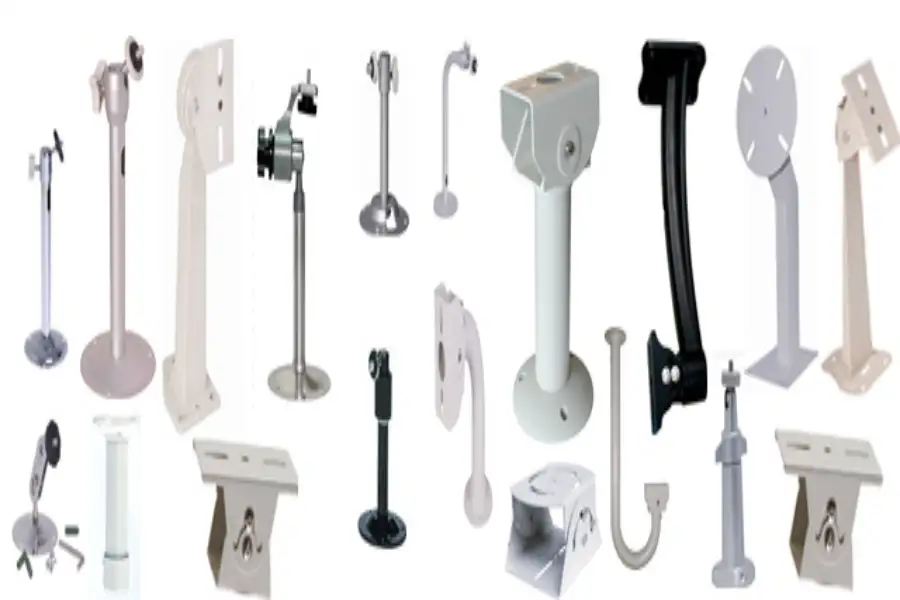 What Are the Different Types of CCTV Camera Bracket?
 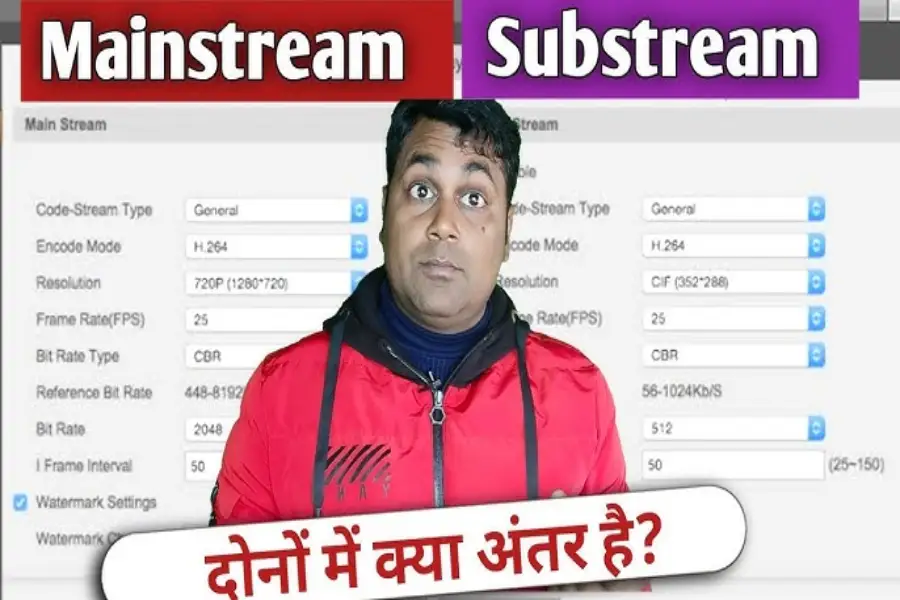 What Is the Difference Between Mainstream and Substream