





A Guide to Reset PTZ Camera Settings
2024-01-04
PTZ (Pan-Tilt-Zoom) cameras are invaluable for surveillance, streaming, and recording purposes. However, encountering issues with camera settings is not uncommon. In this guide, we'll walk you through the steps to reset PTZ camera settings, ensuring optimal performance. Whether you're facing connectivity problems, unresponsive controls, or other issues, a reset can often resolve these issues efficiently.
Why Resetting PTZ Camera Settings is Necessary
Before delving into the steps, let's understand why resetting PTZ camera settings might be necessary. Issues such as video feed disruptions, erratic movements, or IP address conflicts can impede the camera's functionality. A reset serves as a troubleshooting measure, helping to restore default configurations and resolve these challenges.
When Do I Need to Factory Reset My IP Camera?
Performing a factory reset on your IP camera is a significant step that should be taken under specific circumstances. Here are some situations when you might need to consider a factory reset for your IP camera:
1.Forgotten Credentials
If you have forgotten the login credentials (username and password) for your IP camera and cannot access its settings, a factory reset becomes necessary. This action will restore the default username and password.
2.Network Configuration Issues
When your IP camera encounters persistent network configuration issues, such as difficulty connecting to the network or obtaining an IP address, a factory reset can help in resolving these problems.
3.Camera Malfunctions
In case your IP camera is experiencing technical malfunctions, glitches, or erratic behavior that cannot be resolved through regular troubleshooting, a factory reset might be the last resort to restore the camera to its default, stable state.
4.Security Concerns
If there are concerns about the security of your IP camera, such as a potential compromise or unauthorized access, a factory reset can be performed to eliminate any custom configurations that may have been tampered with.
5.Configuration Errors
When you have made configuration changes that resulted in errors or issues with the camera's performance, a factory reset allows you to start afresh with default settings.
6.Preparing for Resale or Transfer
Before selling or transferring your IP camera to someone else, performing a factory reset is essential to clear any personal configurations and ensure that the new owner starts with default settings.
7.Firmware Updates
In some cases, firmware updates may necessitate a factory reset to ensure compatibility and proper functioning. Check the manufacturer's instructions and release notes to determine if a reset is recommended after a firmware update.
8.System Upgrades or Changes
If you are making significant changes to your surveillance system, such as upgrading hardware or changing the central management system, a factory reset may be required to align the IP camera with the new setup.
If you have forgotten the login credentials (username and password) for your IP camera and cannot access its settings, a factory reset becomes necessary. This action will restore the default username and password.
2.Network Configuration Issues
When your IP camera encounters persistent network configuration issues, such as difficulty connecting to the network or obtaining an IP address, a factory reset can help in resolving these problems.
3.Camera Malfunctions
In case your IP camera is experiencing technical malfunctions, glitches, or erratic behavior that cannot be resolved through regular troubleshooting, a factory reset might be the last resort to restore the camera to its default, stable state.
4.Security Concerns
If there are concerns about the security of your IP camera, such as a potential compromise or unauthorized access, a factory reset can be performed to eliminate any custom configurations that may have been tampered with.
5.Configuration Errors
When you have made configuration changes that resulted in errors or issues with the camera's performance, a factory reset allows you to start afresh with default settings.
6.Preparing for Resale or Transfer
Before selling or transferring your IP camera to someone else, performing a factory reset is essential to clear any personal configurations and ensure that the new owner starts with default settings.
7.Firmware Updates
In some cases, firmware updates may necessitate a factory reset to ensure compatibility and proper functioning. Check the manufacturer's instructions and release notes to determine if a reset is recommended after a firmware update.
8.System Upgrades or Changes
If you are making significant changes to your surveillance system, such as upgrading hardware or changing the central management system, a factory reset may be required to align the IP camera with the new setup.
Choose the Perfect PTZ Camera |
|||
 |
 |
 |
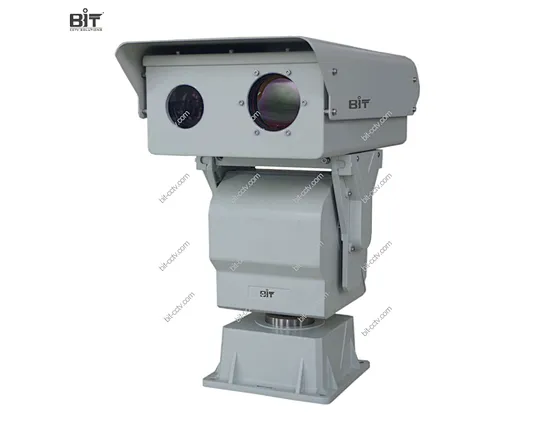 |
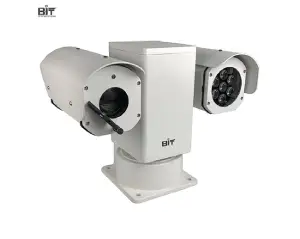
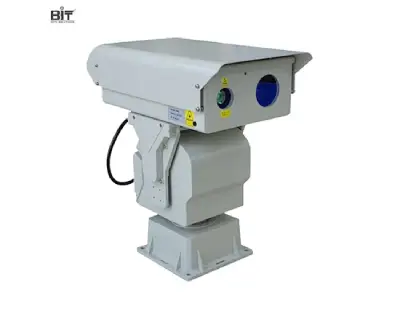
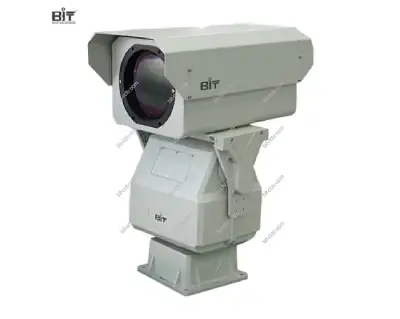
| Vehicle PTZ Camera | Laser Night Vision PTZ Camera | Ptz Thermal Imaging Camera | Dual Vision PTZ Camera |
Preparation Before Reset
Before initiating a reset on your PTZ camera, it's essential to take a few preparatory steps to ensure a smooth process and safeguard your crucial configurations.
A. Back up Important Configurations
Identify and document any custom configurations or settings that are critical for your surveillance setup.
Make a list of network settings, IP addresses, and any specific configurations related to pan, tilt, zoom, and camera angles.
Consider taking screenshots or photos of the current settings for reference after the reset.
Make a list of network settings, IP addresses, and any specific configurations related to pan, tilt, zoom, and camera angles.
Consider taking screenshots or photos of the current settings for reference after the reset.
B. Identify the Camera's IP Address
Locate the IP address assigned to your PTZ camera. This information is vital for accessing the camera's interface.
If you're unsure about the camera's IP address, consult the camera's user manual or use network scanning tools to identify connected devices.
If you're unsure about the camera's IP address, consult the camera's user manual or use network scanning tools to identify connected devices.
C. Ensure Network Connectivity
Confirm that your computer or device is connected to the same network as the PTZ camera.
Check for any network issues that might hinder communication with the camera during the reset process.
Ensure that your device's firewall or security settings allow communication with the camera.
Check for any network issues that might hinder communication with the camera during the reset process.
Ensure that your device's firewall or security settings allow communication with the camera.
Step-by-Step Guide to Reset PTZ Camera Settings
Resetting PTZ (Pan-Tilt-Zoom) camera settings can be necessary for troubleshooting issues or restoring default configurations. Here's a step-by-step guide to help you reset PTZ camera settings:
Step 1: Access the Camera Interface
Open a web browser on a computer connected to the same network as the PTZ camera.
Enter the camera's IP address in the browser's address bar and press Enter.
Log in to the camera's interface using the provided username and password. Refer to the camera's manual for default login credentials.
Step 2: Navigate to Camera Settings
Once logged in, navigate to the camera settings or configuration section. This may vary depending on the camera's model and manufacturer.
Step 3: Locate the Reset Option
Step 3: Locate the Reset Option
Look for an option labeled "Reset," "Restore to Default," or a similar term. This option is typically found in the camera's system or administration settings.
Step 4: Confirm the Reset
Step 4: Confirm the Reset
Click on the "Reset" option and carefully read any on-screen instructions or warnings.
Confirm your intention to reset the PTZ camera settings. Note that this action will revert all settings to their factory defaults.
Step 5: Power Cycle the Camera
After confirming the reset, turn off the PTZ camera and wait for a few seconds.
Turn the camera back on. This power cycle ensures that the changes take effect.
Step 6: Reconfigure Settings (if necessary)
If the camera requires specific configurations, such as IP address or network settings, reconfigure them after the reset.
Consult the camera's user manual for guidance on reconfiguring settings to meet your requirements.
Step 7: Test the Camera
After resetting and reconfiguring, test the PTZ camera's functionality. Check pan, tilt, zoom, and other features to ensure they are working correctly.
Laser PTZ Camera Manufacturer--BIT-CCTV
The BIT-CCTV IR/laser network PTZ camera, equipped with either IR LED or an enhanced laser illuminator, delivers high-quality surveillance even in pitch darkness, offering up to 1000 meters of night vision. This advanced camera features rapid rotational capabilities, precise positioning, and a 1080P HD visible camera, enabling swift detection and tracking of objects during nighttime scenarios. With an anti-shake design, our network PTZ camera is also suitable for mobile surveillance applications, including vehicle-mounted setups.
To ensure the selection of the most suitable PTZ camera for your specific system or solution from our diverse product line, we recommend reaching out to us via email at sales@bit-cctv.com. Share your detailed technical requirements, and our team will provide you with professional advice tailored to your needs. Your satisfaction and optimal surveillance performance are our top priorities.
To ensure the selection of the most suitable PTZ camera for your specific system or solution from our diverse product line, we recommend reaching out to us via email at sales@bit-cctv.com. Share your detailed technical requirements, and our team will provide you with professional advice tailored to your needs. Your satisfaction and optimal surveillance performance are our top priorities.
 Reasons to Avoid Purchasing Inexpensive Security Cameras
  How to Protect a Cctv Camera from Rain
  What's the Difference Between 4k and 1080p?
  Benefits of Surveillance Cameras in Public Places
  How to Prevent Camera Lens from Fogging at Night
  How Long Do Security Cameras Keep Footage?
  A Guide to Hiding Security Cameras
  A Complete Guide to PTZ Controller
  Best 10 Places to Put Security Cameras
  How to Power Wireless Cameras
  How to Choose the Best Security Camera Housing
  CCTV Camera Vs IP Camera: What's the Difference?
  The Top 10 CCTV Problems You Need to Fix
  Difference Between Thermal Imaging and Infrared
  How Does a Thermal Imaging Camera Work
  How Do Wireless Security Cameras Get Power
  How to Protect Outdoor Security Cameras like a Pro
  CCTV Meaning in Business Security
  What Are the Different Types of CCTV Camera Bracket?
  What Is the Difference Between Mainstream and Substream